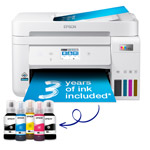
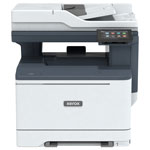
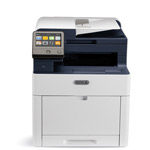
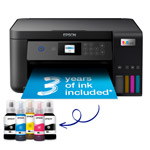
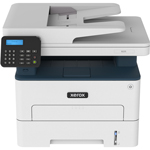
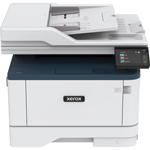
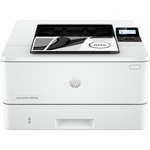
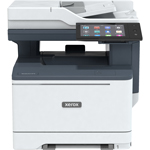
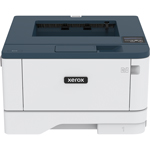
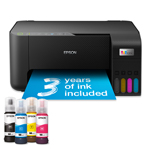
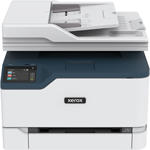
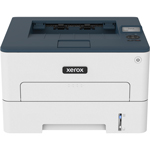
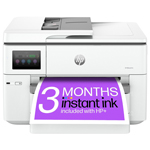
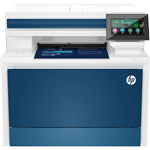
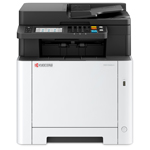
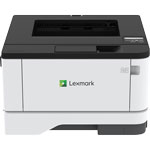
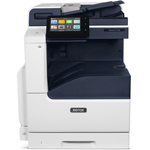
Using Apple’s proprietary AirPrint technology, iPad printers provide an easy way to connect an iPad for a truly wireless experience from anywhere in the workplace without the need to install drivers.
So, whether you’re in the office, temporary workspace or at home, an iPad printer provides a new level of convenience for modern, flexible workflows.
Printers for iPads: Tailored Solutions for Every User
Owing to their incredible versatility, iPad printers offer benefits for a wide range of user types. Here are just some ways to benefit from adding an iPad printer to your workplace.
iPad Printers for Small Office Users
For small office users, convenience and accessibility is key. Printers for iPads provide a quick and easy way for small office users to access high quality printing directly from their iOS device. Ideal for small teams, iPad printers allow multiple users to simultaneously print to a single location, helping to aid collaboration and streamline day-to-day tasks.
With many iPad printers offering print, scan, copy and fax versatility in a single device, small office users can complete a wide range of tasks from a central location directly from their iPad.
Printing from an iPad has never been easier with a zero-fuss set-up that doesn’t require the help of an IT professional, making iPad printers the ideal solution and some of the best printers for small busineses, helping to save time and boost workplace productivity.
iPad Printers for Home Users
The perfect addition to any home office, iPad printers offer the ultimate in convenience. Ideal for a wide range of everyday home printing tasks including homework, important emails, family photos or producing work documents when working from home, an iPad printer delivers the versatility your family needs. With many iPad printers featuring compact footprints, they can easily integrate into home environments where space is at a premium.
iPad Printers for Mobile Businesses
Helping to aid mobile business users when out ‘in-the-field’, iPad printers provide a range of crucial benefits for on-the-go professionals. Helping to boost point of sale professionalism, iPad printers allow users to instantly print contracts, invoices, reports and more when face-to-face with clients for an improved customer experience.
Helping to boost productivity, iPad printers allow mobile business users to connect the printer to an iPad for shortened workflows and faster transactions leading to improved profitability.
You can simply reduce equipment needs when on-the-go by eliminating the need for cables in temporary setups such as tradeshows, pop-up shops and conferences, with multiple team members being able to print to the same printer.
How to Connect an iPad to a Printer: Key Considerations
Connecting your iPad to a printer can be seamless if you know what to look for. Here’s a step-by-step guide to ensure a smooth setup and optimal printing experience:
- Check for AirPrint compatibility:
- AirPrint is Apple’s built-in wireless printing technology. Most modern iPad-compatible printers support AirPrint, allowing you to print directly from your iPad without installing additional drivers or software.
- To verify, check the printer’s specifications or look for the AirPrint logo on the product page.
- Connect both devices to the same Wi-Fi network:
- For AirPrint to work, both your iPad and the printer must be connected to the same Wi-Fi network.
- Ensure your printer is powered on and connected to Wi-Fi. You can usually do this via the printer’s control panel or setup app.
- Install manufacturer apps (If Needed):
- While AirPrint covers most needs, some printers offer additional features (like scanning or advanced settings) through their own apps.
- Download the relevant app from the App Store if you want enhanced functionality.
- Printer functionality and features:
- Decide what features you need: printing, scanning, copying, or faxing. Many iPad printers are multifunction devices, so choose one that matches your requirements (e.g., for small offices, home use, or mobile business scenarios).
- Consider the printer’s footprint if space is limited, especially for home or mobile use.
- Basic connectivity steps:
- Open the document, photo, or email you want to print on your iPad.
- Tap the Share icon (usually a square with an arrow), then select Print.
- Choose your AirPrint-enabled printer from the list.
- Adjust print options (number of copies, range, etc.) and tap Print.
Why Choose Printerland for Your iPad and Printer Needs?
As the UK’s leading reseller of iPad printers, by purchasing with Printerland you can enjoy a range of benefits.
- Our Price Match Promise ensures you’ll receive the best deal possible on your iPad printer and with free next business day delivery for all orders over £125 inc VAT you’ll be up and running in no time.
- Our team of 30+ printer experts are on hand to guide you through every step of the purchasing process and can provide answers to any questions you may have to find the ideal iPad printer for you.
- Our extensive range of iPad printers includes offerings from leading manufacturers including Xerox, Kyocera, Epson and more and with single and multifunction models available you can find an option that meets your specific needs. So, take the time to discover your next iPad printer today!
Author Details
Roger Turner is Sales Director at Printerland. With over 20 years in the print industry, he has helped thousands of businesses and home users choose the right printer solutions, from high-volume office devices to photo-quality inkjets. His insights are backed by Printerland’s team of 30+ experts and decades of industry knowledge.
Call our experts for printer advice for free on 0800 840 1992